
Nothing is more frustrating than a blurry display on your VR headset. If you’re like me who wanted to escape the real world using VR, but only to see a blurred screen, I know the disappointment. Fortunately, I learned how to make my VR headset less blurry, which I’ll teach you below.
To prevent your VR headset from becoming blurry, clean it regularly. Dirty lenses lead to hazy displays, so wiping them regularly can make things clearer. If the lenses are clean, you may want to adjust the VR device on your head. Ensure you position it correctly for HD vision.
Below, I’ll teach you the other ways to make VR less blurry. But first, I’ll answer whether VR is supposed to be blurry or not. I’ll also give you insight into why the technology can appear unclear.
Is VR Supposed To Be Blurry?
VR stands for virtual reality. It is designed to offer an immersive experience in another reality where you control everything. So, to answer your question: Is VR meant to be blurry?
No, it isn’t. A modern headset that projects VR or virtual reality has a sharp and focused display. This helps you escape to another world and interact with computer-generated objects.
However, technological limitations mean that there is still a degree of blurry images in VR. This often shows up in your peripheral vision or when viewing things up close.
Why Is My VR Blurry?
VR can also become blurry due to the following things.
Dirty VR Lenses

Dirty lenses are among the most common reasons why VR is blurry.
You can transfer smudges to the VR headset lens by simply holding it incorrectly. Wearing VR devices outside can also increase the risk of getting dirty lenses. Expect dirt, dust, and fog to significantly impact visual clarity.
It’s essential to clean the lenses of VR headsets to prevent blurry displays and ensure an optimal VR experience.
Incorrect Position of VR Headset

You can get a blurry image if you wear the VR headset incorrectly. Putting it on too high, low, left, or right means the human eye isn’t aligned with the lenses.
A loose-fitting headset also results in an unclear display because it causes the VR headset to become misplaced on your head. Consider devices with a head strap to retain their correct position and give you visual clarity, regardless of your movements.
Incorrect IPD (Inter-Pupillary Distance) Setting
Interpupillary distance (IPD) refers to the distance between your eyes. It varies depending on the person.
If the spacing of the VR lenses doesn’t match your IPD, expect a blurry display. As such, you need to adjust the IPD setting on your VR headset before using it.
Poor Eyesight
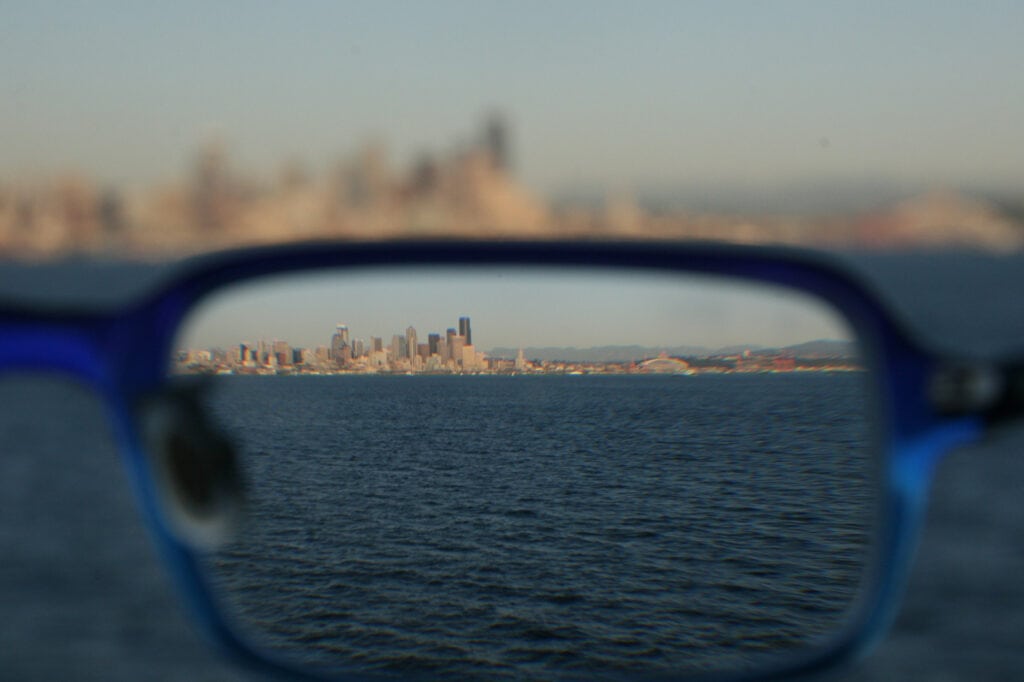
Poor vision is another reason why you have a blurry VR experience. If you are extremely short-sighted or have astigmatism, you’re likely to see blurry images. Those with hyperopia (farsightedness) can see clear objects with the VR as long as they’re viewing them from a far distance. Otherwise, they will struggle when gazing at something near them.
Fortunately, many modern VR headsets let you wear your glasses with a prescription while using them. This way, you can enjoy a clear and sharp image quality.
Poor Quality Lenses
Old VR headsets often feature poor quality and cheaply manufactured lenses. These lead to blurry images, which prevent you from having an optimal VR experience.
The GearVR and Google Cardboard are two popular examples of VR devices with poor lenses. They use a smartphone for the screen, resulting in low display resolution.
Low Application Resolution
The last reason why your VR is blurry is because of the application you’re using. Although most programs operate at the default resolution of the headset, some apps use low resolution settings. That results in a pixellated and blurry VR image.
How To Make VR Less Blurry?
By now, you know the reasons behind a blurry VR headset. The next thing to learn is how to fix the VR image for a fully immersive experience.
Below are some methods you can follow to make virtual reality less blurry and more realistic. These work on different headsets, such as the Oculus Quest, Oculus Rift, HTC Vive, and more.
Clean Headset Lenses Regularly
Regular cleaning of VR headset lenses is a must for crystal clear display. After all, dirty lenses are among the main causes of blurry images.
To clean them, gently wipe their glass surfaces with a microfiber cloth. Doing so removes fingerprints, stains, and fog on the lenses. If you’re primarily dealing with dust, you can simply use a mini air blower specifically designed for lenses. But if you notice more stubborn particles, consider pouring a small amount of dish soap on the lint-free cloth.
Avoid using a damp ordinary cloth or your shirt because they can scratch the delicate glass material of the VR headset. These lead to permanent damage to the lenses.
Adjust the Headset to Its Proper Position

Although VR headsets are designed to fit all types of face shapes, they still require slight adjustment to achieve pixel-perfect clarity.
It helps if you know your face shape. For example, those with rectangular or long faces may find that the VR headset sits on their eyebrows instead of their eyes. That leads to a blurry image. Meanwhile, people with smaller faces might feel that the device is too big, but it’s not.
Use the headband to adjust the VR gear on your head until you find the sweet spot. You should feel the lower part of the headset lie securely on your cheekbones. You must also feel comfortable bending or looking down without the device falling off.
However, be careful when adjusting the VR headset because you don’t want your dirty fingerprints to smudge the lenses. And if you encounter double vision or fog, consider rotating the band. Otherwise, leave it alone.
Wear Glasses or Contact Lenses
Is your vision significantly impaired without correction? If yes, your poor eyesight can affect your ability to experience virtual reality. It is among the top reasons why VR is blurry.
Fortunately, the fix is simple. Wear your glasses or contact lenses to experience all the benefits of VR. Most modern headsets allow you to do so. Just remember to adjust the position of the headset, especially if you’re using prescription eyeglasses, for crystal-clear video. Do this gently to avoid accidental scratches on both your glasses and the VR camera lens.
However, if you have the budget and hate the feeling of glasses pressing on the VR headset, consider investing in custom VR lens inserts. You can find a number of manufacturers offering such products. These ensure visual clarity without needing to wear bulky glasses while in VR.
Change the VR Eye Distance
As previously mentioned, humans have varying distances between their eyes (interpupillary distance). Failing to adjust the IPD setting on the VR headset results in out-of-focus images.
Before you change this setting, though, you must know your specific eye distance. You can use a ruler with millimeter units to determine the gap between your eyes. Stand in front of the mirror and hold the ruler just below your eyes and on top of your cheeks. Then, measure the distance from your right to your left pupil and vice versa. The millimeter that you get is your IPD.
Once you have determined the IPD, you must input this information into your VR headset. There are different ways to do this, depending on your exact VR device.
If you own a PlayStation VR device, follow the steps below to change the PS VR eye distance.
- Go to the PlayStation Home Screen.
- Open Settings and go to the Devices option.
- Select PlayStation VR Eye Distance.
- You can choose the default distance if you’re already comfortable with this setting. Otherwise, change the PS VR Eye Distance.
- Save the settings to your profile.
Note that you may need to re-calibrate the IPD setting if someone else also uses your VR headset. Doing so prevents blurriness and the eye strain it brings.
Check the VR Camera Position
If you have done the steps above but still experience blurred vision, consider adjusting the VR camera itself instead of your head. Sometimes, the headsets display a dark and hazy image due to poor light quality. Changing the camera position might bring favorable results.
You must also ensure the VR headset is properly aligned with the tracking sensors. Remove unnecessary obstructions or reflections that may interfere with tracking and lead to unclear videos.
Stick with High-quality Games and VR Equipment
While it’s tempting to try all VR games and devices, you can never be too sure of their quality. Some apps are laggy and full of bugs. Meanwhile, other VR devices use low-grade camera lenses. Or they require you to connect to a smartphone, which acts as the screen. They often provide blurry pictures. At the same time, they don’t offer a fully immersive virtual reality experience because you’re seeing things on a small screen.
So, before buying VR equipment, make sure to check the reviews and complete features. Check the controls, resolution, refresh rate, hardware compatibility, and software platform, among other factors.
You can never go wrong with established brands, but it’s still best to do your due diligence. Do not trust very cheap devices because they are likely to break quickly and offer a poor display. If something is too good to be true, it probably is.
Conclusion
Virtual reality or VR is supposed to transport you to another world. However, a blurry display ruins the immersive experience. There are many reasons why VR can become blurry. Technological limitations are one of them, resulting in unclear images when using your peripheral vision or viewing things up close.
Fortunately, you can make VR less blurry to enjoy all of its benefits. Cleaning and adjusting the headset position are the two easiest fixes to a fuzzy video. You can also change the VR eye distance depending on your interpupillary distance. Or consider investing in higher-quality apps and devices for a fully immersive experience.
Do you have more questions about virtual reality? Feel free to send us a message via our contact page.