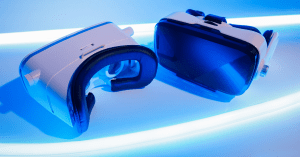
There has been a lot of discussion among Samsung Gear users and Samsung Galaxy users about a popup notification that occurs in Android OS prompting the user to Uninstall Gear VR. The message typically appears after running a restart on the Samsung Electronics mobile device.
Background on the Uninstall Gear VR Message
The Uninstall Gear VR notification message occurs because Gear VR functionality was retired starting with Android version 12.
Some users see the error even if they don’t have Samsung Gear VR headset, and don’t use a VR Kit at all. This is because some of the underlying apps still include Samsung Gear functionality even if it’s not being actively used.
When a user does move forward with uninstalling to remove the notification, a bug has been reported where it also removes some other Facebook/Meta apps such as Facebook, Facebook Messenger, and Instagram.
Others have reported that the Facebook app then redownloads the uninstalled applications in the background, leading to an endless cycle of popup messages, and uninstall procedures.
Other devices may be affected, but the software bug has definitely been reported on the following devices:
- Samsung Galaxy S10
- Samsung Galaxy S10E
- Samsung Galaxy S10+ (S10 Plus)
Suggested fixes for uninstall Gear VR message
Many users have reported that one of the approaches below was able to fix their issue. We recommend starting with Fix #1, and working down to the other approaches if the notifications continue to repeat.
Fix #1: Make sure your Samsung device is updated to at least the One UI 4.1. This solved the issue for many users
Fix #2: Uninstall all affected apps, including FB Messenger. Clear cache under App settings to remove all cached data from Gear VR App. Re-install Messenger by using the Google Play Store (do not install from inside the FaceBook app). After that installation is finished, uninstall the Gear VR app. Finally, restart your phone.
Fix #3: Download the Oculus App and Gear VR App, even if you aren’t using them. Then download an uninstaller app. Go into phone settings and select Gear VR service, stop all activity and clear cache. Then use the uninstaller app to uninstall relevant VR apps and restart your mobile phone.
Fix #4: Uninstall using the command line in the ADB shell by running the following command: “pm uninstall –user 0 com.samsung.android.hmt.vrsvc”. This method should prevent the reinstallation loop, but requires you to install ADB (Android Debug Bridge, a tool for developers to debug apps). You can then use ADB shell PM from a command line prompt.
How to update the OS on Samsung phone
On your Samsung Android phone go to the Settings App:
Settings > Software update > Download and install
Depending on the device, you may have to navigate to the “About device” menu after settings.
From there you should be able to download any available updates manually.
How to disable Gear VR service on Android
If you don’t use Samsung Gear VR, you may want to stop Gear VR services from potentially running in the background on your phone.
To disable Gear VR Service, do the following:
1. Go into Settings > Apps
2. Choose the Samsung Gear VR service app
3. Click disable option to disable the service
Related issues being tracked, update to follow:
USB Debugging via Micro USB port
Data Saver settings for Gear VR Service