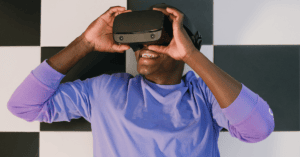
As virtual reality becomes more popular, users are looking for new and innovative ways to share their experiences. One way to do this is by connecting your VR system to your TV. This allows you to share the experience with others and makes it easier to see what’s going on. In this blog post, we will show you how to connect your VR device to your television and some of the benefits of doing so.

Keep in mind that different devices use different methods of connecting. For example, an Oculus Quest 2 headset makes it easy to project directly to your TV using a feature called ‘casting’. This works easily if you have a smart TV with a built in casting feature, or if you have a Google Chromecast already hooked up. You can cast your Oculus Quest with a few easy steps.
Other devices may require an adaptor, we cover the details for the most popular VR headsets below.
The benefits of connecting your VR Device to a TV
One of the cool things about connecting your VR to your television is that you can show off what you’re seeing to others. Whether it’s family, friends, or competing gamers, they can all see what you’re experiencing in virtual reality. This is a great way to share the experience and get people interested in VR especially if you only have one VR headset at home.
It’s really convenient when taking turns playing games with the same VR headset, as the people you’re playing with can keep an eye on and stay engaged with the VR experience.
What you need to connect your VR headset to a TV
The equipment you need to connect your VR system to your TV depends on the type of VR device you have.
If you have an Oculus Quest 2 Headset here is what you need:
1. A compatible TV with a built-in casting feature (or alternatively, a TV connected to a Google Chromecast, Roku TV, Amazon Fire Stick, or AppleTV)
2. Ensure that your TV and your Oculus Quest Headset are on the same wifi network
Once the above items are in place, simply:
a) Go into your Quest 2 home menu
b) Select the share button (it looks like three small circles connected by lines)
c) Click the “cast” button
d) Choose your TV (or associated casting device) that you want to cast to
e) Tap “Next” to enable casting – you should then receive a message that casting has started
If you are using Oculus Rift S, you can do either of the following:
Oculus Rift Connection Option 1:
1. A compatible TV with a built-in casting ability (or alternatively, a TV connected to a Google Chromecast device, Roku, Amazon Fire Stick, AppleTV, or other casting devices)
2. Ensure that your TV and the computer running your Oculus Rift are on the same wifi network
Once the above are in place, simply use the casting feature on your PC or Mac to mirror your screen to your TV.
Oculus Rift Connection Option 2:
• A TV with an HDMI input
• Ensure the computer connected to your Rift has an extra HDMI output
• An HDMI cable that will reach from your computer to your TV
Simply connect the HDMI to HDMI cable between your computer and your TV.
If you have an HTC Vive, besides your Vive you will need the following:
• A TV with Miracast capability
All you have to do is:
a) Select the Vive button on your right hand controller
b) Select the Cast button
c) Choose the TV that you want to start casting to
If you have a ByteDance Pico, you will need the following:
1. A compatible TV with a built-in casting feature (Miracast or other)
a) Double tap the “Home” button on the controller
b) Click on the “TV” button
c) Select the TV that you want to stream to
If you have a PlayStation VR, you will need the following:
• A PlayStation 4 console
• PSVR processor unit and PS Camera
• An HDMI cable (ideally the one that came in the box with your PS4) that is long enough to reach With this one, the good news is Playstation is already set up to connect to your TV via HDMI as part of the standard setup steps. You can also operate Playstation VR without the TV connection, but most people choose to leave it connected for the reasons described in this article.
If you have a Samsung Gear VR, you will need the following:
• A Samsung mobile phone or other mobile device with the Oculus App, along with your compatible Gear VR headset
• A compatible television with support for Chromecast built in
• Ensure your phone and TV are on the same wi-fi network
In the Oculus mobile app select the ‘Cast’ icon and then choose from your available devices to begin casting
If you have any other VR device:
Double check the documentation that came with your device to see what you need to connect it to a TV. And reach out to us via the contact form to let us know if there is a device you feel should be added to our how-to pages.
Additional note: if you are casting from Oculus headsets or Samsung Gear, you may need to set up an Oculus account and give the Oculus app the necessary permission for it to function correctly with smart TVs.
What does the cast button look like on a VR headset?
There are several different types of supported casting devices for most TVs, but Google Chromecast is a very popular one.
Within the Oculus app, to get to the cast button you’ll first need to select the share icon. The share icon typically looks like three small circles with thin lines connecting them, or alternatively, a curved arrow pointing to the right. Then you can select the cast icon for your other casting device.
The actual Google Chromecast cast icon typically looks like a TV with three curved lines above it, similar to a WiFi logo. Other devices may support casting as well and while the logo may look slightly different the concept is the same.
Examples of how people are using VR and TV together
Practically speaking, how can you use a VR device together with your television? Here are some examples:
1. Console/VR headset game streaming: You can connect your PlayStation VR or Oculus headset to your TV directly and play console games like never before. When you stream gameplay it lets you show off your skills to others, and the rest of the room can stay engaged while waiting for their turn.
2. PC game streaming: Similarly, you can connect your HTC Vive or Oculus Rift to your PC and play games on the big screen. This is a great way to enjoy VR games with friends or family.
3. Video streaming: There are now many services that offer the video content in 360 degrees, such as YouTube VR for example. You can connect your VR device to your TV screen and watch these videos together. This is a great way to experience new places or go on virtual vacations.
4. Educational content: There are also a growing number of educational experiences available in VR. You can connect your device to your television and learn about history, science, or art together. This is a great way to engage kids in learning.
5. Social media: Finally, you can use VR to connect with friends and family on social media. There are a number of apps that allow you to do this, and it’s a great way to stay connected with loved ones.